• Home
  • Posts RSS
  • Comments RSS
  • Edit
Blue Orange Green Pink Purple
Plastic Business Card Design Tip, Tricks, and Gallery

Converting Fonts To Outlines

I would just like to say welcome to the Plasticprinters.com design blog. My name is Tom Wiener, I am another member of the design team here to share some knowledge with you. I am an avid supporter of fonts. I believe that a font can make or break your design. Fonts are one of the most important tools of good design, next to the art itself. It is the face of your message to the viewer. If your font doesn't look good or conflicts with the rest of the design, the viewer will lose interest in what you're trying to say. I am not here to talk about font theory though. I am here to help you keep that font looking beautiful in your project.

There are a few things to remember when sending artwork to another company, or the Printer that will be outputting your product. First is what system you are using as well as the other company. Mac and PC's are completely different operating systems. They do work together nicely, but certain things cause childish arguments. Fonts for example! They have a very different code built into each other, its very technical, but what it all comes down to is: Mac fonts don't work on a PC and PC fonts don't work on a Mac. Remember to ask what type of computers the Printer uses before sending incorrect files.

Another problem that occurs along the way, your Printer might not have the fonts you used, even if they are using the same type of computer as you; PC or Mac. Not all computers have the same fonts installed on them, as you have on yours. In this case you will need to send those fonts with your files. If you don't, the program will replace your font with something else. Basically ruining all of your hard work trying to find that perfect font.

One of the best ways to get around this problem is called, Outlining Your Fonts. When you convert your fonts to outlines, your font becomes a basic object or shape. You no longer need to worry about your Printer needing that font. One of the greatest things a Printer can get from a client is a file with fonts converted to outlines. No one has to go through the trouble of tracking down fonts, everything looking good, the whole process goes smoothly.

Here is a walk through of how to Convert Fonts to Outlines: Done in Adobe Illustrator (note: It is the same process for InDesign.)

Step 1:
When in Illustrator, First select all of your artwork you want converted to outlines.
Hotkeys - Ctrl + A (PC) or Command + A (Mac)
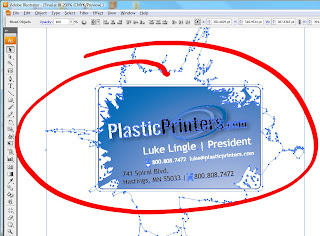


Step 2:
Go to the tab at the top called "Type".
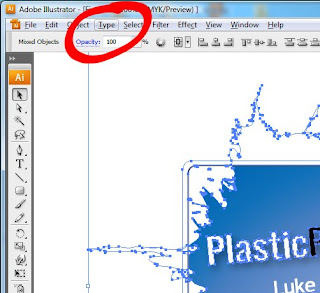


Step 3:
A drop down menu will pop up, look for Create Outlines. Just select that and your font are now in outlines.
Hotkeys - Ctrl + Shift + O (PC) or Command + Shift + O (Mac)
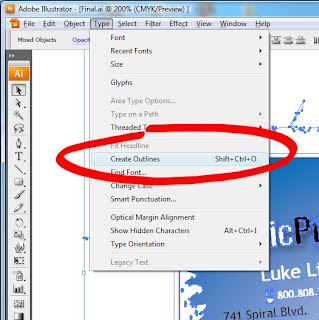


Once you have converted your fonts to outlines, simply re save the artwork. Label it however you would like. I usually add this to the end of the file name: "-outlines" (example - "Business Card-outlines"). That way i have a copy that is good for the Printer and a copy for me, that I can still edit the original file if I need to in the future.

Like I said before, it is a wonderful thing to get a file with the fonts converted to outlines from a customer. Not only does it save us time in getting your proof to you. Everything is accurate from the beginning. Most importantly, it saves you money by not having to spend graphic time to get the files re set-up. Our design team is always glad to help with any questions you might have. If you run into any problems, don't hesitate to call and ask for a designer. Visit Plasticprinters.com for job quotes, design samples, templates and anything else you might need.

Have a good one.
Read More 0 comments | Posted by Tomwiener | edit post Converting Fonts To OutlinesSocialTwist Tell-a-Friend

Idea Generators to Help You Out of that Slump

First off, my name is Anthony Proulx and I am a web designer here at Plastic Printers. Now I know there are times for all of us when we get into a slump or have a brain fart and the idea of my post is to put together a few resources for you to help you get past your slump, or let an idea or two loose.

1.) Use Google Images to its Potential:
When designing a card (or anything) Use key search terms that relate closely to your project. Use multiple keywords and then make sure you switch these keywords around, because different terms and orders bring up different results. Being precise with keywords can also narrow your searches and make them more accurate to your desires.

There is also an advanced search option that can really come in handy. It gives you choices to what kind of subject medium you want such as: faces, news, drawings, line art, or photos. Another thing I find extremely useful is the ability to choose what size of image you are looking for. Often times too many we get stuck trying to use lower res pictures (more for web) but with this size option you can choose to have as small as you want or extra large resolution. Finally, another helpful option is the ability to choose your file format. Keep in mind .jpg's and .gif's are a format that every time you save them, they lower your quality or color spectrum, which is also known as lossy. By using the formats of .PNG and .BMP you are going to have a much more stable construction and minimal data loss (also known as lossless).
http://images.google.com/


2.) Wikipedia:
One of the most well know free legit websites out there. They actually rivaled The Encyclopedia Britannica in acurate and useful information, and all with out a cost. This resource is a must for anyone that wants to know general and tech information about nearly every topic there is. Use this site as research tool for any project and ideas will follow the knowledge surge.
http://www.wikipedia.com


3.) Brands of the World:
Another excellent resource, this one gets you high resolution logos for when a company gives you crappy low res ones. I personally use this site to make mock up business cards when I need to. Or generally see what kinds of businesses that are related to my project are doing with their logos. If a company wants you to put affiliates logos on cards or designs, this is a much better spot to get those logos rather then trying to get them from just anywhere you can.
http://www.brandsoftheworld.com/

As always you can check out our websites for tons of example cards. A great inspirational one with over 50 samples is www.clearplasticcards.com or check out some of our latest videos here.

Hopefully you are now able to break the slump, release that brain fart (in someone else's general direction I hope), and move on with your projects. Check back often because we are going to be giving out tips and tricks to help you keep your inspiration fueled to the max. Thanks for reading and until next time...

Get to Business.
Read More 0 comments | Posted by Anonymous | edit post Idea Generators to Help You Out of that SlumpSocialTwist Tell-a-Friend

11 Tips for Designing Clear & Frosted Cards

While clear and frosted business cards are an immediate jump ahead of the standard paper card, utilizing these tips can help you bring your design from great to amazing. Properly setting up your artwork can also save you time and money on proofing and revisions. If you need a template check out our plastic card templates here, if you would like an instant quote try our online quote calculator.

1. A design that has white in the file will become the clear or satin stock when printed unless it is on a separate layer and designated to be printed.

2. When quoting your card white is considered a color.

3. Colors printed on the card stock without white printed behind them will become transparent.


4. Printing white on each side of the card will not completely block a color that might be printed on the opposite side.


5. Dark colors printed on the our clear plastic card stock without white behind them will turn out very dark. This effect is lessened when printing on frosted satin stock.


6. What you see printed on the front of the card will show through on the back of the card and will be backwards. You can add a layer of white to help block the design from showing through.

7. If your clear, or frosted satin card has a magnetic strip on the back it will show through to the front of the card. Many designers incorporate this into the design, or add white to the front of the card to help block the strip.


8. A popular technique is to knockout either text or an element of your card. When doing this make sure that the text or object is large enough so that it will not disappear or blend together.


9. If you are using tints of a color (lowering opacity) they will turn out lighter when printed than what your computer screen shows. If you have questions please ask your sales rep for advice.


10. An advanced clear plastic card design technique is to print text, or image elements on the front of the card and a solid color on the back. Since there is space between the front and back of the card it will leave a dropshadow and appear raised or 3D.


11. If you apply UV Coating to both sides of a frosted satin card it will end up almost completely clear. This happens because our frosted plastic cards utilize a special texture that makes them distort the light that comes through resulting in a frosted appearance. By laying a UV Coat on the card it fills the texture and cancels the effect.
Read More 0 comments | Posted by Nikki | edit post 11 Tips for Designing Clear & Frosted CardsSocialTwist Tell-a-Friend
Newer Posts Home

Plastic Business Card Design

  • About This Blog
      This blog is dedicated to helping designers fully utilize the options available and correctly design their plastic business card. This is your source for:

      Design Tips
      Tricks
      Inspiration
      Clear and Frosted Card Design Techniques
      and much more!

      Visit our site online at: Plastic Printers
      or our Clear Card Site at Clear Plastic Cards Check out our plastic gift card blog
  • Plastic Card Websites

    • PlasticPrinters.com Website
    • PlasticPrinters.com Online Store
    Get Free Business Card Samples!

    Twitter

    Instant Online Quote
    Order Plastic Cards & Accessories

    Plastic Card Resources

    • Designer Business Cards
    • Plastic Business Cards
    • PlasticPrinters.com Youtube

    Older Posts

    • ▼  2012 (63)
      • ▼  October (2)
        • COOL! CRISP and CLEAR Frosted Business Card!
        • GREAT Simple, Clean, VIP Membership Card!
      • ►  September (6)
      • ►  August (11)
      • ►  July (9)
      • ►  June (16)
      • ►  May (10)
      • ►  April (8)
      • ►  January (1)
    • ►  2011 (5)
      • ►  December (3)
      • ►  November (1)
      • ►  October (1)
    • ►  2010 (32)
      • ►  August (6)
      • ►  July (1)
      • ►  June (7)
      • ►  May (3)
      • ►  April (9)
      • ►  March (2)
      • ►  January (4)
    • ►  2009 (68)
      • ►  December (10)
      • ►  November (8)
      • ►  October (11)
      • ►  August (7)
      • ►  July (7)
      • ►  June (8)
      • ►  May (6)
      • ►  April (7)
      • ►  March (1)
      • ►  February (1)
      • ►  January (2)

    Popular Tags

    • business card (17)
    • plastic card (12)
    • clear card (9)
    • design tips (9)
    • marketing business card (9)
    • 4 color (8)
    • marketing promotional (8)
    • transparent (8)
    • transparent card (8)
    • frosted cards (7)
    • cmyk (5)
    • color (4)
    • printing process (4)
    • 5 color (3)
    • foil (3)
    • vip (3)
    • embossing (2)
    • graphic design (2)
    • how to (2)
    • illustrator (2)
    • pms (2)
    • printer (2)
    • satin cards (2)
    • tutorial (2)
    • access card (1)
    • adobe (1)
    • commercial (1)
    • credit card (1)
    • customer loyalty card (1)
    • gold card (1)
    • key card (1)
    • loyalty program (1)
    • mag stripe (1)
    • membership (1)
    • plastic credit card (1)
    • plastic marketing card (1)
    • premier (1)
    • rewards card (1)
    • rgb (1)
    • rush (1)
    • screening (1)

    Followers

  • Search


    • Home
    • Posts RSS
    • Comments RSS
    • Edit

    © Copyright Plastic Business Card Design Tips. All rights reserved.
    Designed by FTL Wordpress Themes | Bloggerized by FalconHive.com
    brought to you by Smashing Magazine

    Back to Top