
Get plastic business cards if you want to really boost your business! http://www.plasticprinters.com
Get plastic business cards if you want to really boost your business! http://www.plasticprinters.com


To learn more about plastic business cards go to plasticprinters.com or call 1.800.808.7472.
View more samples of Plastic Business Cards:
It's time to conclude our list of PlasticPrinters.com's Top 10 Plastic Business Card Design Tips! Here are a few last suggestions for designing outstanding, problem-free plastic card artwork. (Continued from Part 2.)
7. Avoid Very Small Type
Sometimes fine print is required for a card design, such as the disclaimer on the back of a gift card. But when it comes to important information, such as the contact information on a business card, be sure to keep your type from getting too small. Exactly how small is too small will vary depending on the design, fonts, and colors involved, not to mention the particular set of eyes trying to read the text. But in general it is probably best to keep your font size at least 7pt.
8. Avoid Thin, Light Type on Transparent Cards
Special consideration is required when designing for transparent stocks, especially when it comes to type. Small, light text, that may look good when printed on an opaque white background, becomes a lot more difficult to read on a transparent background. Gray text on satin-finish cards is a particularly problematic combination, and should be avoided if possible. If you want to use light-colored type (perhaps it is part of your logo), printing opaque white blocker behind it will help make it easier to read. Otherwise, consider darkening the color or making it as large and bold as possible.
9. Call Out Spot Colors
If your design uses specific Pantone colors, it is important to make sure it is clear what those colors are so that the correct inks will be used, or can be matched with CMYK inks.
10. Remove Elements That Do Not Print
Be sure that your artwork doesn't have any elements flattened into it that do not print in ink. This includes die lines, variable data, magnetic stripes, and embossing. If you need to include these elements in your artwork to show the placement, be sure they are on separate layers or are vector objects that can be easily removed from the art.
Thanks for reading PlasticPrinters.com's Top 10 Business Card Design Tips!
Return to Part 1 or Part 2.
To learn more about plastic business cards go to plasticprinters.com or call 1.800.808.7472.
7. Avoid Very Small Type
Sometimes fine print is required for a card design, such as the disclaimer on the back of a gift card. But when it comes to important information, such as the contact information on a business card, be sure to keep your type from getting too small. Exactly how small is too small will vary depending on the design, fonts, and colors involved, not to mention the particular set of eyes trying to read the text. But in general it is probably best to keep your font size at least 7pt.
8. Avoid Thin, Light Type on Transparent Cards
Special consideration is required when designing for transparent stocks, especially when it comes to type. Small, light text, that may look good when printed on an opaque white background, becomes a lot more difficult to read on a transparent background. Gray text on satin-finish cards is a particularly problematic combination, and should be avoided if possible. If you want to use light-colored type (perhaps it is part of your logo), printing opaque white blocker behind it will help make it easier to read. Otherwise, consider darkening the color or making it as large and bold as possible.
9. Call Out Spot Colors
If your design uses specific Pantone colors, it is important to make sure it is clear what those colors are so that the correct inks will be used, or can be matched with CMYK inks.
10. Remove Elements That Do Not Print
Be sure that your artwork doesn't have any elements flattened into it that do not print in ink. This includes die lines, variable data, magnetic stripes, and embossing. If you need to include these elements in your artwork to show the placement, be sure they are on separate layers or are vector objects that can be easily removed from the art.
Thanks for reading PlasticPrinters.com's Top 10 Business Card Design Tips!
Return to Part 1 or Part 2.
To learn more about plastic business cards go to plasticprinters.com or call 1.800.808.7472.
View more samples of Plastic Business Cards:
PlasticPrinters.com's Top 10 Plastic Business Card Design Tips, Part 2 is now here! This week we continue with our tips for designing outstanding, problem-free plastic card artwork. (Continued from Part 1.)
4. Convert All Fonts to Outlines
When designing your art in a vector-based program, such as Illustrator or InDesign, one of the most beneficial things you can do is to convert all your fonts to outlines. This will ensure that all of your text will display properly on any computer, regardless of platform or fonts installed. To convert your fonts to outlines in Illustrator and InDesign, start by Selecting All (Ctrl + A). Then in the Type Menu, select Create Outlines (or Shift + Control + O). This extremely simple step saves everyone time and prevents a multitude of artwork issues.
5. Embed All Linked Files
When designing your art in Illustrator, it is possible to drop bitmap images (such as jpgs) into your artwork. But unless you embed these images into the document, they will merely be linked files. This means that if you save and send the Illustrator file and send it to someone else, linked files will be missing when they open the file. This requires that you also send the original jpgs (or tiffs, or pngs) along with the Illustrator file, to which the Illustrator file can then link. When you embed an image in Illustrator, it is now part of the Illustrator document and no longer requires being sent separately. To embed images, select the image, then click on the "embed" button on the Control Panel. Or, select the file in the Links panel, then choose "Embed Images" from the panel menu in the upper righthand corner.
6. Make Sure Images are 300 ppi
When submitting artwork that includes bitmap images such as jpg, tiff, or Photoshop files, it is vital that they are high resolution to ensure that they won't look pixellated or blurry when printed. Artwork for you card should be at least 300 pixels per inch (ppi), the recommended resolution for print. Bear in mind that simply scaling an image will change its resolution. Enlarging an image will lower the resolution, and vice versa. So be sure that your images are at least 300 ppi at the size they will appear on your card.
Check back soon for the final set of Top 10 Plastic Business Card Design Tips!
Return to Part 1.
To learn more about plastic business cards go to plasticprinters.com or call 1.800.808.7472.
 |
| Text as Font |
 |
| Text as Outlines |
5. Embed All Linked Files
When designing your art in Illustrator, it is possible to drop bitmap images (such as jpgs) into your artwork. But unless you embed these images into the document, they will merely be linked files. This means that if you save and send the Illustrator file and send it to someone else, linked files will be missing when they open the file. This requires that you also send the original jpgs (or tiffs, or pngs) along with the Illustrator file, to which the Illustrator file can then link. When you embed an image in Illustrator, it is now part of the Illustrator document and no longer requires being sent separately. To embed images, select the image, then click on the "embed" button on the Control Panel. Or, select the file in the Links panel, then choose "Embed Images" from the panel menu in the upper righthand corner.
6. Make Sure Images are 300 ppi
 |
| Good Resolution |
 |
| Low Resolution |
Check back soon for the final set of Top 10 Plastic Business Card Design Tips!
Return to Part 1.
To learn more about plastic business cards go to plasticprinters.com or call 1.800.808.7472.
View more samples of Plastic Business Cards:

Are you tired of plain white backgounds on your Gift Cards? Give your design a visual boost with a wide selection of colored stocks including metallic colors, like this gift card from SPAGnVOLA Chocolatier. The metallic sheen pops through the flood of brown to make a very cool shimmery effect. The Gift Card might be for chocolate, but this card is like candy for the eyes! Learn more today by checking out our plastic gift cards now website.
View more samples of plastic gift cards by checking out this great websites:
Creative Plastic Cards
Get inspired!
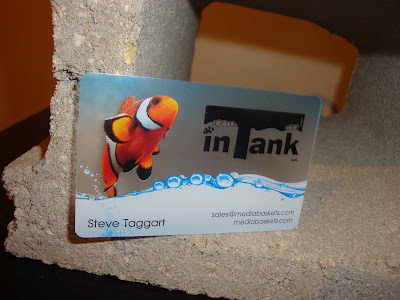
Here's a great example of a colorful, eye-catching business card. This plastic business card for In Tank is printed on satin stock for a diffuse, translucent look. The vibrant color in the design is given a boost by opaque white blocker behind the fish and water. Don't let your business get bogged down with boring, paper business cards. Find out more about clear plastic business cards at PlasticPrinters.com!
To learn more about plastic business cards go to plasticprinters.com or call 1.800.808.7472.
View more samples of Plastic Business Cards:
Here at PlasticPrinters.com we like to
make sure ordering your plastic cards is a smooth, painless process. If you
don’t have a design for your cards, PlasticPrinters.com has a talented graphics team that can design your cards for you. However, if you are sending
PlasticPrinters.com your own designed artwork, one of the best ways to prevent
delays in your order and to ensure the best results from your printed cards is
to send properly designed artwork.
This week we present to you part one of our Top 10 Plastic Business Card Design Tips to help you create outstanding, problem-free plastic card artwork!

1. Create
Artwork The Same Size As Your Product
The most important place to start when designing the art for your
card to make sure your document is the same size as your final printed product.
This may seem obvious, but is actually a commonly overlooked step. If your
artwork isn’t the exact same size as your final product, PlasticPrinters.com’s graphics department will have to edit your design to fit, and the results could be slightly different than you expected. Find your product and template here.
2. Add A Bleed
If your design contains graphics that extend to the edge of the
card, it is vital to bleed your artwork
beyond the trimline 1/8”. This means, for example, that for a 3.375” x 2.125”
card your final graphic will be 3.625” x 2.375”. This will compensate for any
movement the graphic makes during the printing process.
3. Keep Text in the Safe Area
For the same reason it is important to add bleed, it is also very important
to keep text and non-bleeding graphics 1/8” away from the edge of the card,
inside what is called the “safe area.” This will prevent any chance of the text inadvertently getting cut off.
Check back for more of our Top 10 Plastic Business Card Design Tips!
Continue to Part 2.
To learn more about plastic business cards go to plasticprinters.com or call 1.800.808.7472.
Continue to Part 2.
To learn more about plastic business cards go to plasticprinters.com or call 1.800.808.7472.
View more samples of Plastic Business Cards:
Plastic Business Card Design
About This Blog
-
This blog is dedicated to helping designers fully utilize the options available and correctly design their plastic business card. This is your source for:
Design Tips
Tricks
Inspiration
Clear and Frosted Card Design Techniques
and much more!
Visit our site online at: Plastic Printers
or our Clear Card Site at Clear Plastic Cards Check out our plastic gift card blog
Search
